H5P Content Fails to Load or does not render
What Happened
Many H5P content types allow you to add subcontent items — for example, stages in a GameMap, interactions in an Interactive Video, questions in a Question Set, or elements in a Course Presentation. Each subcontent item requires you to select a content type from a dropdown before saving.
If you click + Add Content and save without selecting a content type from the dropdown (leaving it at "-"), the broken item gets stored — and the content will fail to render for anyone who tries to view it.
Affected content types include (but are not limited to):
H5P GameMap
H5P Interactive Video
H5P Course Presentation
H5P Question Set
H5P Branching Scenario
Any other H5P content type that supports adding subcontent
Symptoms:
The content appears blank or fails to load entirely
The error occurs immediately on page load, before any interaction and looks like this in the console:
jquery.js?version=1.27:2 Uncaught TypeError: Cannot read properties of undefined (reading 'library')
    at H5P.newRunnable (h5p.js?version=1.27:887:59)
    at s.initializeInstance (h5p-game-map.js?version=1.5.4:2:201161)
    at new e (h5p-game-map.js?version=1.5.4:2:200313)
    at new t (h5p-game-map.js?version=1.5.4:2:206398)
    at h5p-game-map.js?version=1.5.4:2:214537
    at Array.forEach (<anonymous>)
    at new e (h5p-game-map.js?version=1.5.4:2:214303)
    at t.buildDOM (h5p-game-map.js?version=1.5.4:2:237930)
    at new e (h5p-game-map.js?version=1.5.4:2:255289)
    at c.initializeMain (h5p-game-map.js?version=1.5.4:2:264948)
What Causes It
When H5P initializes any content, it loops through every subcontent item and tries to render each one. An item saved with no content type selected has no library information attached to it — so the renderer crashes immediately.
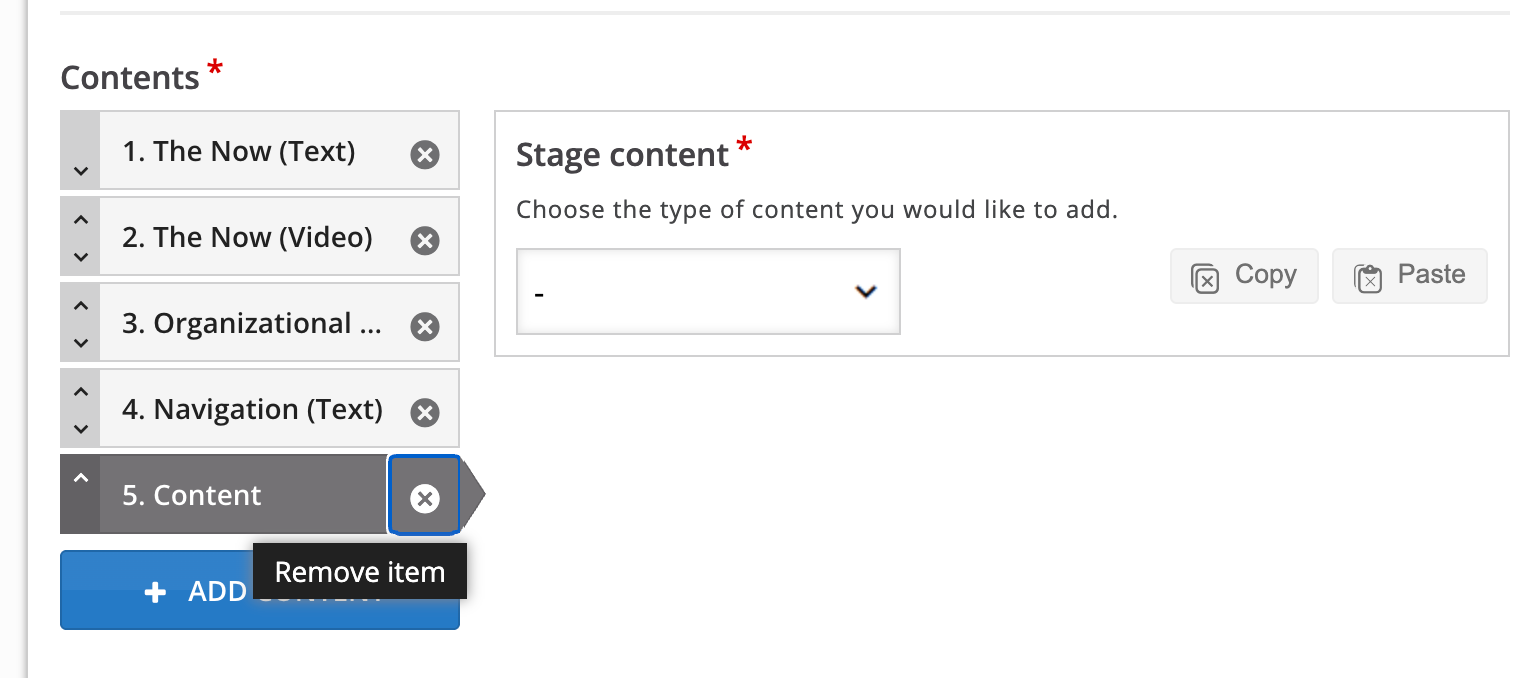
The screenshot below shows the problem state: item 5. Content is selected, and the panel on the right shows a dropdown still set to "-", meaning no content type was chosen before saving.
How to Fix It
Option 1: Fix it in the editor (recommended)
Open the affected content in the H5P editor
Navigate through every section, slide, stage, or interaction list
Look for any item that has no type name — it will typically appear as just "Content" in the list, with the content panel showing "-" in the type dropdown
Either:
Select a content type from the dropdown and fill in the required content, or
Click the X (Remove item) button to delete the empty entry
Save the content
How to Prevent It
Always select a content type from the dropdown immediately after clicking + Add Content
Before saving, review every section of your content and confirm no items still show "-" in the type dropdown
If you accidentally add a content item you don't need, use the X button to remove it before saving
Still need help? Ask the team